
These instructions will show you how to set up ExpanDrive on Mac to access our offsite backup server. After completion, you'll be able to drag-and-drop files between your Mac and the backup server. While this guide is Mac-specific, the steps required to configure ExpanDrive on a PC are similar.
Note: You will need your username and password from the welcome e-mail in order to complete the setup
- Step 1. Download and install ExpanDrive
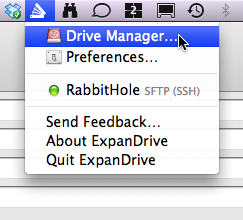
- Step 2. Choose Drive Manager... from ExpanDrive's menu in the taskbar
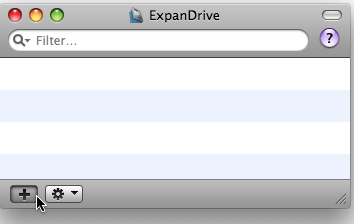
- Step 3. Click Add (+) button to add a new drive
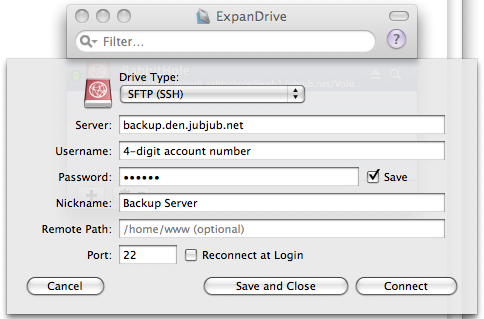
- Step 4. Configure your new drive as follows:
- Drive Type: SFTP (SSH)
- Server: backup.den.jubjub.net
- Username: Enter your 4-digit account number
- Password: Enter your password (check Save)
- Nickname: Backup Server
- Remote Path: Leave blank
- Port: 22
- Optional: If you wish to connect to the backup server automatically after logging in to your Mac, check Reconnect at Login
- Step 5. Click Save and Close
- Step 6. To connect, double-click the drive icon from the Drive Manager list
If the connection was successful, you'll see a drive in the Finder named Backup Server